
Configuration
Configurations
A configuration is a set of parameters that define your tracker's behavior: GPS acquisition frequency, transmission intervals, power management, button behavior, etc.
Neyos factory configuration
Each tracker is delivered with a factory configuration defined by Neyos. This default configuration is designed for standard use and suits the majority of use cases.
View my tracker's configuration
You can view at any time the configuration currently applied to a tracker, as well as the value of each of its parameters.
- Select the relevant tracker. From the Neyos platform, open the list of your trackers and click on the tracker whose configuration you wish to view.
- Open the Configuration tab. On the tracker's details page, go to the configuration tab.
- View the applied configuration. A read-only view displays:
- The name of the configuration currently applied to the tracker.
- The value of each parameter, distributed across 6 thematic tabs: "Acquisition", "Transmission", "LED", "Power", "Buttons" and "Shock and impact".
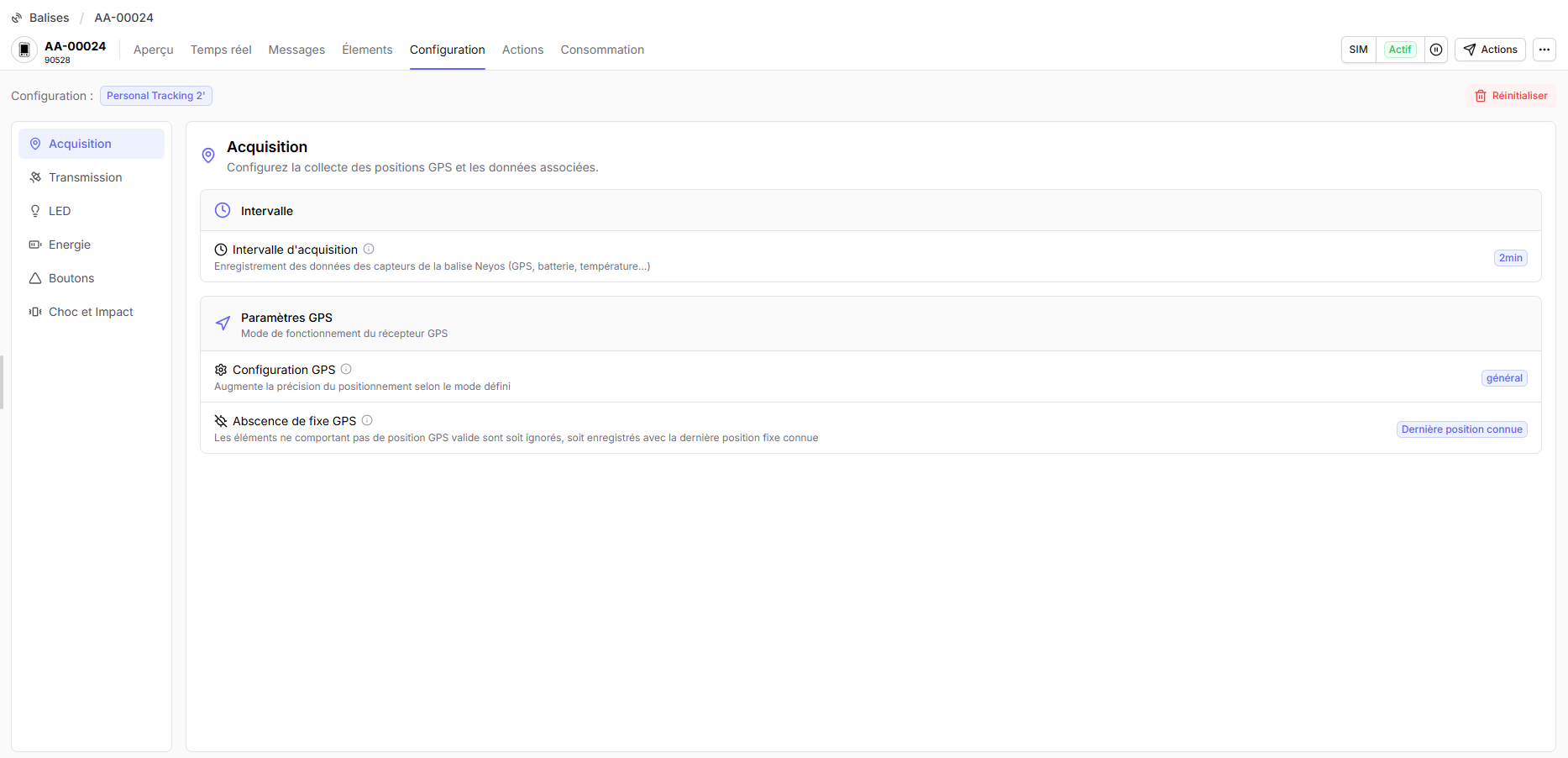
To modify parameters or create a new configuration, go to the Configuration tab in the side menu.
Create a custom configuration
To adapt the behavior of your trackers to your specific needs, you can create a custom configuration:
- Go to Neyos Platform / Configurations
- Click on .
- Define the desired parameters
- Save this configuration. The list of saved configurations is visible from your account.
Apply a configuration to my trackers
Once your configuration is created, you can push it to a single tracker or to a batch of trackers via multiple selection.
- Go to Neyos Platform / Trackers
- Select the tracker(s)
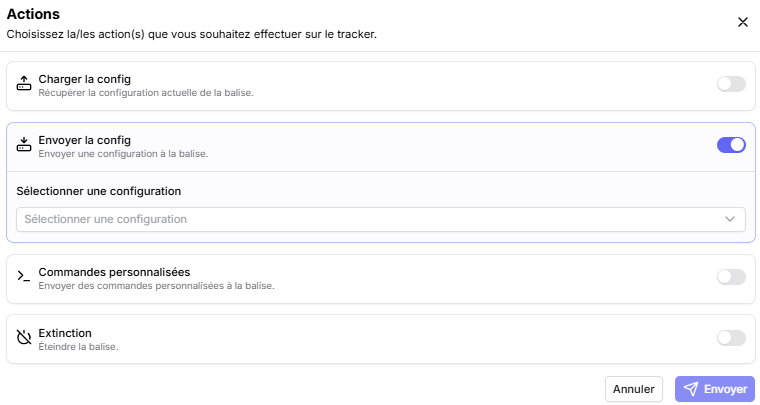
- A single tracker: Select the relevant tracker. Click on Action
- Multiple trackers: use the checkboxes to select the trackers to configure. Click on Send an action

- Click on Send config then select the configuration to apply from those saved in your library.
Settings
Platform settings are grouped into 6 themes, accessible from the tabs of the configuration editor. Each theme groups around ten parameters to adjust a specific aspect of your tracker's behavior.
| Section | Description |
|---|---|
| Acquisition | GPS recording frequency, behavior in case of signal absence, positioning mode |
| Transmission | Network choice (cellular, satellite), transmission intervals, failover rules |
| LED | Light behavior: network connection, battery level, button presses |
| Power | Sleep modes: active sleep for quick wake-up, deep sleep for maximum savings |
| Buttons | Configuration of the 4 buttons: locking, press delay, associated actions |
| Shock and Impact | Definition of shock and impact trigger thresholds |
Acquisition
The Acquisition section defines how the tracker collects data from its sensors: GPS position, battery level, temperature, etc.
Acquisition interval
Defines a time interval at which the tracker records data from its sensors (GPS, battery, temperature).
| Default | Min | Max |
|---|---|---|
| 5 seconds | 50 ms | 24 h |
How does it work?
At each interval, the tracker:
- Activates the GPS receiver for geolocation
- Measures the battery level
- Reads the internal temperature
- Stores this data in local memory
The data is then transmitted according to the send interval configured in the Transmission section.
GPS configuration
Optimizes the GPS receiver according to the type of movement to improve positioning accuracy.
| Default |
|---|
| General |
How does it work?
The GPS receiver uses filtering algorithms to smooth positions and predict trajectories. This parameter adjusts these algorithms according to the expected type of movement:
- Vehicle: Filter optimized for high speeds and regular trajectories (roads)
- Pedestrian: Tolerates frequent direction changes at low speed
- Fixed object: Stabilizes the position by ignoring micro-variations
Available modes:
| Mode | Description | Recommended use |
|---|---|---|
| General | Versatile mode without specific optimization | Mixed use |
| Vehicle | Optimized for high speeds and road trajectories | Cars, trucks, vans |
| Pedestrian | Adapted to low speeds with frequent direction changes | Walking |
| Bike / Motorcycle | Increased sensitivity to quick direction changes | Two-wheelers |
| Fixed object | Prioritizes position stability | Machines, containers |
| High altitude | Accepts high altitudes | Drones, light aviation |
No GPS fix
Tracker behavior when it fails to obtain a valid GPS position (indoors, tunnel, dense area...).
| Default |
|---|
| Last known position |
How does it work?
During an acquisition, if the GPS receiver fails to obtain a valid position (signal too weak, obstruction...), the tracker applies the configured behavior:
- Ignore: The acquisition is abandoned, no data is recorded for this interval
- Last known position: The tracker reuses the last valid GPS coordinate obtained, with the other current data (battery, temperature)
Available options:
| Option | Behavior |
|---|---|
| Ignore | Data without a valid GPS position is not recorded |
| Last known position | The tracker reuses the last valid GPS position obtained |
Transmission
The Transmission section defines how and how often the tracker sends its data to the Neyos platform.
The tracker can use several network types: cellular (LTE-M, NB-IoT) and satellite (5G NTN).
Primary network selection + Secondary network selection
Defines the networks used by the tracker. You can configure a primary network and a secondary network (fallback).
How does it work?
The tracker always tries to connect to the primary network first. If the connection fails or is lost, it automatically switches to the secondary network after the configured delay. This architecture guarantees continuous connectivity, even in areas with partial coverage.
Available networks:
| Network | Description | Consumption |
|---|---|---|
| LTE-M | 4G cellular network optimized for IoT | Low |
| NB-IoT | 4G cellular network optimized for IoT | Low |
| 5G NTN | Satellite connection for remote areas | High |
Configuration examples:
Cellular only
Primary network: LTE-M / NB-IoT
Secondary network: LTE-M / NB-IoT
Economical and maximum autonomy
No coverage in white zones
Usage: Economical and reliable cellular solution for common uses.
Satellite only
Primary network: 5G NTN
Secondary network: 5G NTN
Better network coverage
High consumption, higher data cost
Usage: Satellite connectivity for isolated environments and critical uses.
Hybrid (recommended)
Primary network: LTE-M / NB-IoT
Secondary network: 5G NTN (Satellite)
Best of both worlds
Automatic switch if cellular network is lost
Usage: The best of both worlds: continuous coverage, controlled costs.
Maximum network connection delay
Defines the maximum time allowed for the tracker to establish a connection on a network (at startup or after a failover). This parameter applies to both cellular and satellite.
| Parameter | Default | Min | Max |
|---|---|---|---|
| Failover delay after LTE network loss | 1 min 10 s | 0 ms | 24 hours |
| Failover delay after NTN network loss | 3 minutes | 0 ms | 24 hours |
How does it work?
When the tracker needs to transmit data:
- It searches for the corresponding network (cellular or satellite)
- A timer starts with the configured delay
- If the connection succeeds before expiration → normal transmission
- If the delay expires → abandon and move to the next step (switch to the other network, go to sleep, or retry later)
Why configure this delay?
If the targeted network is not available (white zone, sky obstruction, unfavorable weather), the tracker should not remain blocked indefinitely waiting for connection. This delay allows you to:
- Avoid blocking in areas without network coverage.
- Preserve the battery by limiting prolonged connection attempts.
Cellular send interval
Determines how often data is transmitted over the cellular network (LTE-M and NB-IoT).
| Default | Min | Max |
|---|---|---|
| 15 seconds | 5 s | 24 h |
How does it work?
At each interval, the tracker:
- Transmits data accumulated since the last send
- Retrieves and processes any pending commands (new configuration, remote action)
Data transmitted at each send:
| Type | Data |
|---|---|
| Acquisition | GPS position, battery, temperature,... (according to the acquisition interval) |
| Network | Signal quality (%), operator, network type |
Maximum cellular connection delay
Defines the maximum time allowed for the tracker to establish a cellular connection. Beyond this delay, the tracker abandons the attempt and moves to the next step according to its configuration (switch to satellite network if configured).
| Default | Min |
|---|---|
| 2 minutes | 0 ms |
How does it work?
When the tracker needs to transmit data:
- It searches for an available cellular network.
- A timer starts with the configured delay.
- If the connection succeeds before expiration → normal transmission.
- If the delay expires → abandon and fall back to the backup strategy.
Why configure this delay?
In a white zone or with a signal too weak, this delay prevents the tracker from remaining blocked indefinitely waiting for connection. It allows you to:
- Avoid blocking in areas without cellular coverage.
- Preserve the battery by limiting prolonged connection attempts.
Data to transmit via cellular
Defines which data is sent via the cellular network.
| Default |
|---|
| All data |
How does it work?
Between two transmissions, the tracker accumulates data in local memory (according to the acquisition interval). This parameter determines how this data is handled during sending:
| Option | Behavior |
|---|---|
| Live | Sends only the last acquired position |
| All data | Sends all data collected since the last send |
| None | Disables cellular transmission |
If the acquisition interval is shorter than the transmission interval, multiple points accumulate in memory and are sent together during transmission.
- Live: only the last point is transmitted, others are ignored
- All data: all accumulated points are transmitted at once
Satellite send interval
Determines how often data is transmitted over the satellite network.
| Default | Min | Max |
|---|---|---|
| 5 minutes | 30 s | 24 h |
How does it work?
At each interval, the tracker:
- Transmits data accumulated since the last send
- Retrieves and processes any pending commands (new configuration, remote action)
Data transmitted at each send:
| Type | Data |
|---|---|
| Acquisition | GPS position, battery, temperature,... (according to the acquisition interval) |
| Network | Signal quality (%), operator, network type |
Maximum satellite connection delay
Defines the maximum time allowed for the tracker to establish a satellite connection. Beyond this delay, the tracker abandons the attempt and moves to the next step according to its configuration (switch to cellular network if configured).
| Default | Min |
|---|---|
| 3 minutes | 0 ms |
How does it work?
When the tracker needs to transmit data:
- It searches for an available satellite network.
- A timer starts with the configured delay.
- If the connection succeeds before expiration → normal transmission.
- If the delay expires → abandon and fall back to the backup strategy.
Why configure this delay?
In a white zone or with a signal too weak, this delay prevents the tracker from remaining blocked indefinitely waiting for connection. It allows you to:
- Avoid blocking in areas without satellite coverage.
- Preserve the battery by limiting prolonged connection attempts.
Terrestrial fallback delay
Automatic switch delay from satellite to terrestrial, regardless of connection status.
| Default |
|---|
| 20 minutes |
How does it work?
As soon as the tracker connects to the satellite network, a counter starts. Once this delay has elapsed, the tracker automatically attempts to switch back to the terrestrial network, even if the satellite connection is still valid. The goal: limit costs related to satellite usage by favouring terrestrial as soon as it becomes available again.
Data to transmit via satellite
Defines which data is sent via the satellite network.
| Default |
|---|
| Live |
How does it work?
Between two transmissions, the tracker accumulates data in local memory (according to the acquisition interval). This parameter determines how this data is handled during sending:
| Option | Behavior |
|---|---|
| Live | Sends only the last acquired position |
| All data | Sends all data collected since the last send |
| None | Disables satellite transmission |
If the acquisition interval is shorter than the transmission interval, multiple points accumulate in memory and are sent together during transmission.
- Live: only the last point is transmitted, others are ignored
- All data: all accumulated points are transmitted at once
LED
The LED section allows you to customize the light behavior of your tracker. The tracker has several LEDs: System, Charging, Square, Cross and Triangle.
Brightness level
Defines the lighting intensity of the LEDs.
| Default |
|---|
| Night |
| Level | Recommended use |
|---|---|
| Day | Maximises LED intensity, ideal for very bright environments where visibility must come first. |
| Night | Good visibility for everyday use, while limiting glare and power consumption. |
For each connection state, you can adjust the LED animation and color.
| State | Default animation | Default color |
|---|---|---|
| Cellular CAT-M — searching | Medium pulse | orange |
| Cellular CAT-M — connected | Medium pulse | green |
| Cellular NB-IoT — searching | Medium pulse | orange |
| Cellular NB-IoT — connected | Medium pulse | cyan |
| Satellite NTN — searching | Medium pulse | orange |
| Satellite NTN — connected | Medium pulse | blue |
For each sleep mode, you can adjust the LED animation and color.
| State | Default animation | Default color |
|---|---|---|
| Partial sleep | Slow pulse | purple |
| Deep sleep | Off | pink |
Available settings
For each tracker state, you can configure the following parameters:
Animation
Type of light effect applied to the LED. Each dynamic mode embeds its own speed: there is no separate Speed parameter.
| Animation | Effect |
|---|---|
| Steady | LED on continuously |
| Pulse | Progressive intensity variation ("breathing" effect): slow, medium or fast speeds |
| Blink | On/off alternation at regular intervals: slow, medium or fast speeds |
| Off | LED disabled |
Color
The tracker's LEDs are RGB LEDs and support the following colors:
Power
The Power section controls the sleep modes and the tracker's battery life management.
Two sleep levels are available and can be combined in cascade:
- Active sleep: quick wake-up, moderate savings (30-50%)
- Deep sleep: slower wake-up, maximum savings (up to 90%)
If both modes are enabled, the tracker follows this sequence when it becomes inactive:
- After no movement for the duration defined by the active sleep delay, the tracker enters active sleep mode.
- If no movement is detected during the deep sleep delay, counted from entry into active sleep, the tracker switches to deep sleep.
- As soon as movement is detected, regardless of the current sleep mode, the tracker immediately returns to its nominal operation.
Power saving mode
Global switch for the sleep system. When disabled, no sleep mode can be triggered, regardless of the active and deep mode settings configured below. When enabled, each mode (active sleep, deep sleep) remains individually controllable via the dedicated parameters of the following sections.
| Default |
|---|
| Disabled |
Wake-up delay
Defines the time required to wake up from sleep after motion detection. This delay prevents unwanted wake-ups on micro-movements (passing vibrations).
| Default |
|---|
| 2 s |
Accelerometer wake-up threshold
Motion detection sensitivity for waking from sleep, expressed in milli-g (mg). The higher the value, the more pronounced the movement must be to wake the tracker.
| Default | Min | Max |
|---|---|---|
| 40 mg | 1 mg | 16 000 mg |
Reference: 1 000 mg = 1 g (Earth's gravity)
Delay before active sleep
Defines the inactivity time (no movement) before the device enters active sleep. Value 0: mode disabled.
| Default |
|---|
| 5 min |
How does it work?
When active sleep is triggered:
- The entire system switches to low-power mode
- The GPS module and modem adopt the behavior configured in the parameters below
- The sensors remain active to detect movement and trigger the wake-up
At the slightest detected movement, the tracker exits sleep and resumes normal operation.
GPS status in active sleep
GPS behavior when entering active sleep.
- Pause: the GPS module keeps its fix and remains very responsive on wake-up. No significant power savings on GPS, but near-instant wake-up.
- Off: the GPS module is completely stopped for maximum power savings. The restart time may be longer and a new fix will need to be acquired.
| Default |
|---|
| Pause |
Modem status in active sleep
Modem behavior when entering active sleep.
- Active: the modem remains active, ready to transmit immediately. No power savings on the modem.
- Pause: native power-saving mode of the modem (PSM). Quick wake-up without network reconnection.
- Off: the modem is completely stopped for maximum savings. A network reconnection is required during the wake-up phase.
| Default |
|---|
| Off |
Delay before deep sleep
Defines the inactivity time (no movement) before the device enters deep sleep. Value 0: mode disabled.
| Default |
|---|
| 10 min |
How does it work?
When deep sleep is triggered:
- The entire system switches to low-power mode
- The GPS module and modem adopt the behavior configured in the parameters below
- The sensors remain active to detect movement and trigger the wake-up
At the slightest detected movement, the tracker exits sleep and resumes normal operation.
GPS status in deep sleep
GPS behavior when entering deep sleep.
- Pause: the GPS module keeps its fix and remains very responsive on wake-up. No significant power savings on GPS, but near-instant wake-up.
- Off: the GPS module is completely stopped for maximum power savings. The restart time may be longer and a new fix will need to be acquired.
| Default |
|---|
| Off |
Modem status in deep sleep
Modem behavior when entering deep sleep.
- Active: the modem remains active, ready to transmit immediately. No power savings on the modem.
- Pause: native power-saving mode of the modem (PSM). Quick wake-up without network reconnection.
- Off: the modem is completely stopped for maximum savings. A network reconnection is required during the wake-up phase.
| Default |
|---|
| Off |
Buttons
The Buttons section configures the behavior of the tracker's physical buttons.
The tracker has 4 buttons:
- System button: Controls the tracker's power on/off
- Square button: Customizable action
- Cross button: Customizable action
- Triangle button: Customizable action
Square button message sending
Authorizes sending an event when the square button is pressed.
| Default |
|---|
| Send event |
How does it work?
When the user presses the square button:
- The tracker verifies that the minimum press duration is met
- If the press is validated, an event is created
- The event is transmitted
- The tracker waits for the acknowledgment
- The anti-spam delay starts until the next send authorization
Square button press duration
Defines the press duration on the square button required to trigger a message send.
| Default | Min | Max |
|---|---|---|
| 3 s | 1 s | 10 s |
Minimum delay between two square events
Defines the minimum delay to respect before a new event can be sent after a previous event has been triggered.
| Default | Min | Max |
|---|---|---|
| 1 min | 30 s | 2 h |
Square event type
Type of event published during a long press on the square button.
| Default | Available values |
|---|---|
| Button 1 (square) | Button 1 (square) · SOS · Accident · User OK |
Cross button message sending
Authorizes sending an event when the cross button is pressed.
| Default |
|---|
| Send event |
How does it work?
When the user presses the cross button:
- The tracker verifies that the minimum press duration is met
- If the press is validated, an event is created
- The event is transmitted
- The tracker waits for the acknowledgment
- The anti-spam delay starts until the next send authorization
Cross button press duration
Defines the press duration on the cross button required to trigger a message send.
| Default | Min | Max |
|---|---|---|
| 3 s | 1 s | 10 s |
Minimum delay between two cross events
Defines the minimum delay to respect before a new event can be sent after a previous event has been triggered.
| Default | Min | Max |
|---|---|---|
| 1 min | 30 s | 2 h |
Cross event type
Type of event published during a long press on the cross button.
| Default | Available values |
|---|---|
| Button 2 (cross) | Button 2 (cross) · SOS · Accident · User OK |
Triangle button message sending
Authorizes sending an event when the triangle button is pressed.
| Default |
|---|
| Send event |
How does it work?
When the user presses the triangle button:
- The tracker verifies that the minimum press duration is met
- If the press is validated, an event is created
- The event is transmitted
- The tracker waits for the acknowledgment
- The anti-spam delay starts until the next send authorization
Triangle button press duration
Defines the press duration on the triangle button required to trigger a message send.
| Default | Min | Max |
|---|---|---|
| 3 s | 1 s | 10 s |
Minimum delay between two triangle events
Defines the minimum delay to respect before a new event can be sent after a previous event has been triggered.
| Default | Min | Max |
|---|---|---|
| 1 min | 30 s | 2 h |
Triangle event type
Type of event published during a long press on the triangle button.
| Default | Available values |
|---|---|
| Button 3 (triangle) | Button 3 (triangle) · SOS · Accident · User OK |
Shock and impact
The Shock and impact section configures automatic shock detection by the tracker's accelerometer. When an impact exceeds the configured threshold, an event is generated and transmitted to the platform (fall, collision, violent jolt).
Activation
Enables or disables shock detection. When disabled, no shock event is generated, regardless of the values of the following parameters.
| Default |
|---|
| Disabled |
Profile
Detection profile adapted to your use case. Each profile applies a default sensitivity threshold optimized for its context.
| Default | Available values |
|---|---|
| Pedestrian | Pedestrian · Vehicle · Running · Custom |
Sensitivity threshold
Trigger threshold expressed in milli-g (mg) above which a shock is detected.
| Default |
|---|
| 1 500 mg |
The default value depends on the selected profile:
Reference: 1 000 mg = 1 g (Earth's gravity)