Logo Neyos

Update your tracker

Official procedure to update your tracker and access the latest software versions.

Why are updates important?

Software updates ensure that your tracker always operates with the best level of reliability and performance.

They regularly provide:

  • the latest available features,
  • performance improvements (battery life, connectivity, stability),
  • and fixes for known bugs.

Updating is not mandatory after initial configuration, but it is strongly recommended to ensure that your equipment operates with the best level of reliability.

Latest available versions

Each major firmware version is available in several variants depending on the deployment area (Europe, Australia, Canada). Each variant ships with a prioritised cellular operator list specific to its region, reducing startup connection time and improving field reliability. Select the variant matching your fleet's primary deployment area.
Previous
NEXUS OS v1.33

NEXUS OS v1.33

Last release of the V1 branch, now superseded by V2.0. It covers the tracker's core capabilities: GPS acquisition, cellular and satellite transmission, and system event management. V2.0 brings additional optimisations in network stability and transmission reliability. Upgrading is recommended to benefit from the latest improvements.

Legacy
OTRAC V4.8

OTRAC V4.8

Older stable version based on the previous architecture. It remains available for compatibility with trackers not yet migrated to NEXUS OS, but is no longer actively maintained.

Required equipment

To perform the update, make sure you have the following equipment:

1
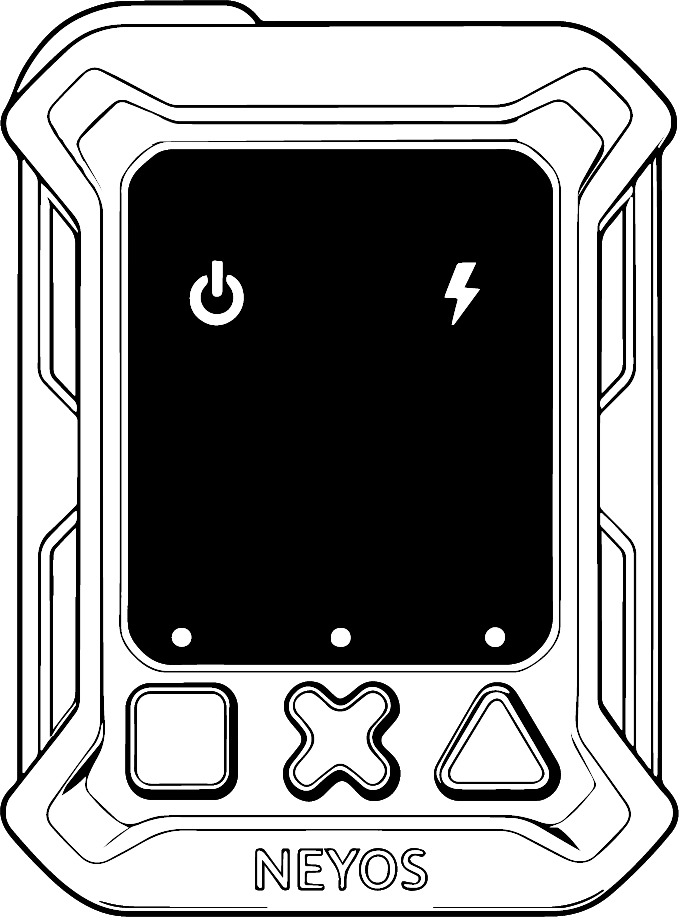
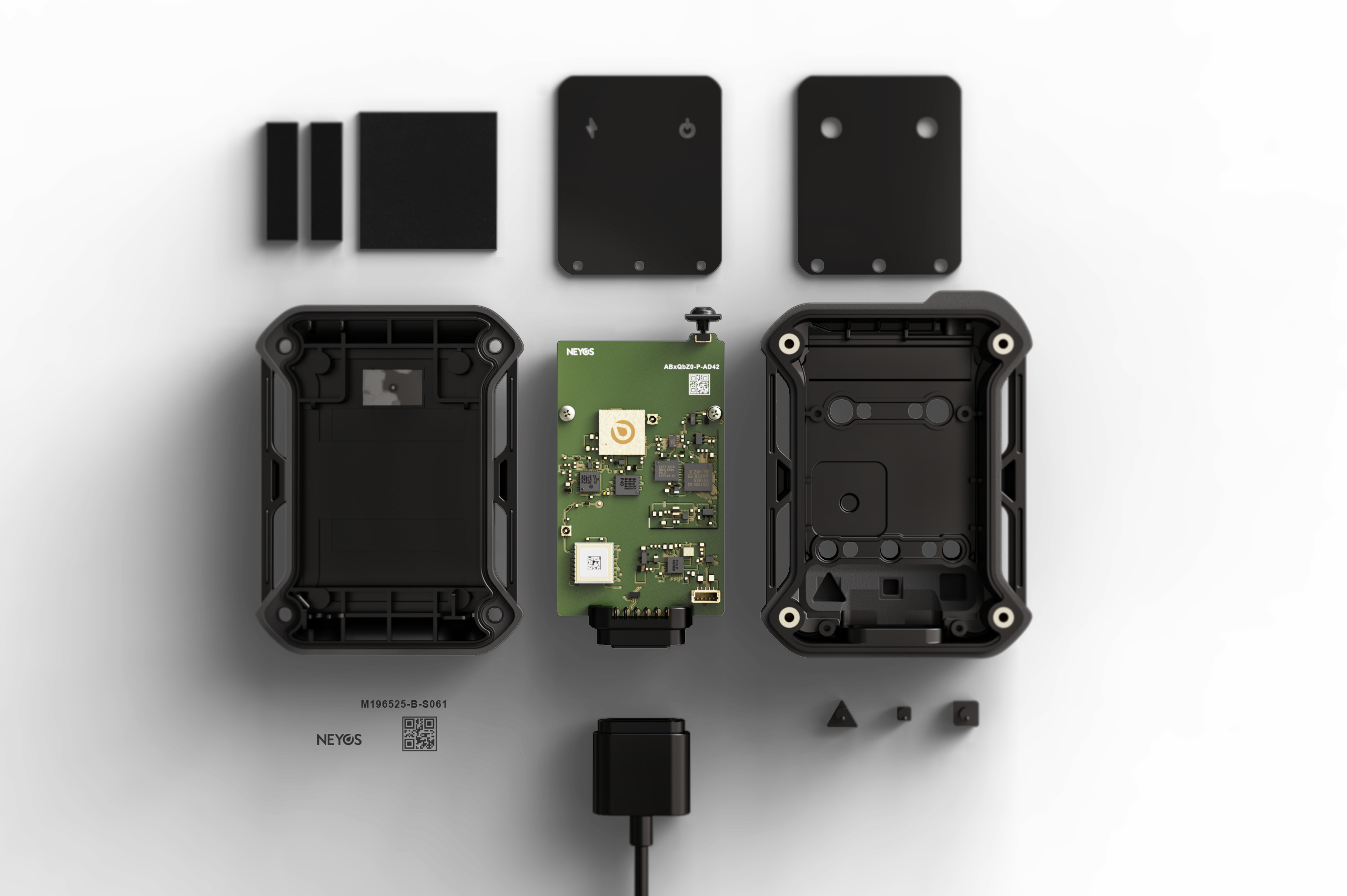
OTRAC tracker

OTRAC tracker

The device to be updated. Make sure it is sufficiently charged before starting the procedure.

2
White programming cable

White programming cable

USB cable provided with the tracker, dedicated to firmware updates and advanced programming.

You will also need a Windows or Mac computer with access to the Neyos platform.

Update steps

The update is now performed entirely from the Neyos platform, with no third-party software to install.

Log in to the platform

Access the Neyos platform with your user account.

Open the Update tab

In the side menu, click on Update.

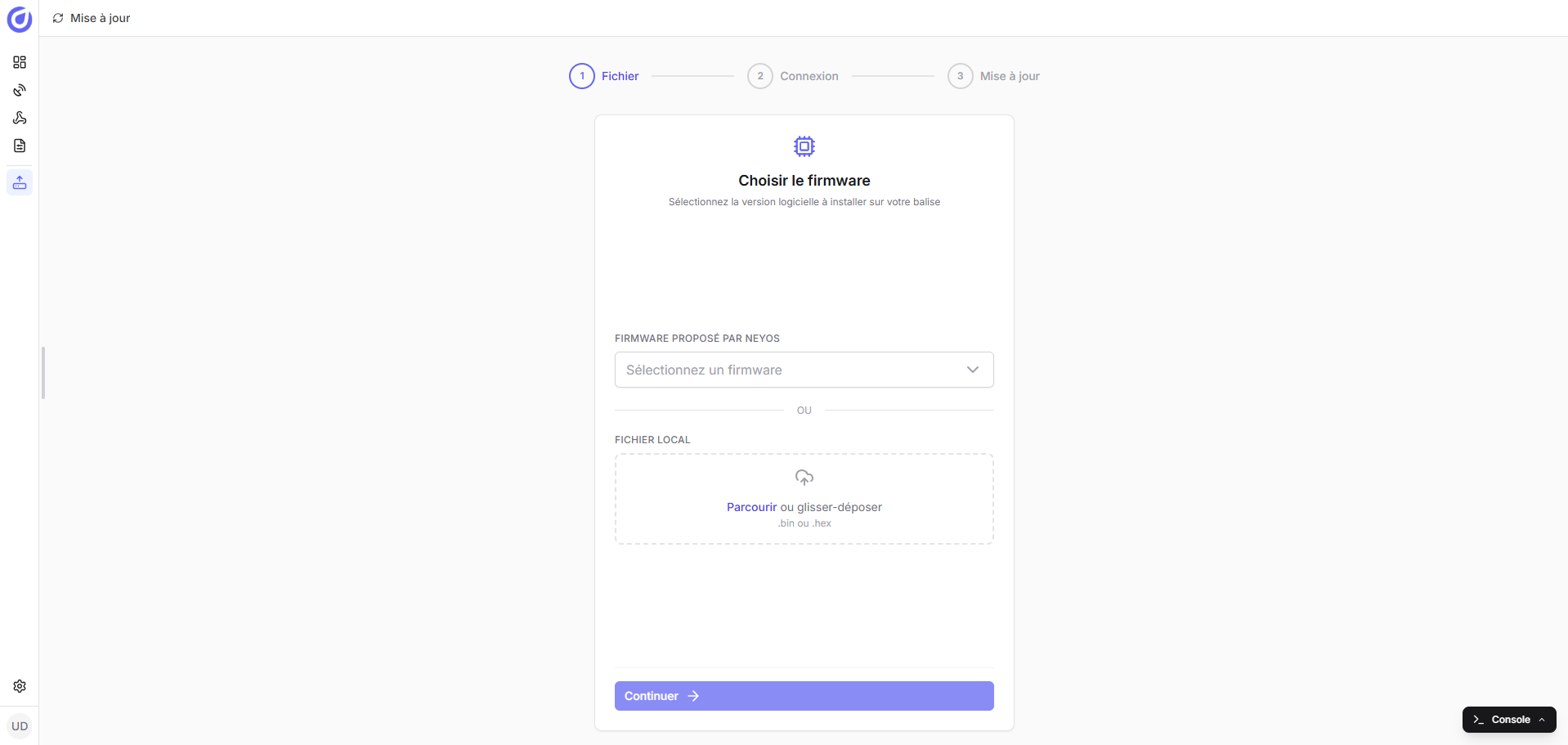
Select the firmware to install

The update portal appears. In the dropdown menu, choose the firmware version you want to deploy.

Start the update

Let the platform guide the operation through to completion.

Do not disconnect the tracker at any point during the update.

Step-by-step video walkthrough

Watch the full procedure in real conditions.

To confirm the installation, check the firmware version in the Configuration tab of the Neyos platform.

Frequently asked questions

Error "Serial port already open" or "Unable to connect to serial port"

This message appears when the platform cannot establish communication with the tracker. Two common causes:

  • USB drivers not installed: install the FTDI VCP drivers from the official website, choosing the version that matches your computer (2.12.36.20 or 2.12.36.20A).Download FTDI drivers
  • Serial port already in use elsewhere: another software or another tab/window is holding the port open. Close any application that may be communicating with the tracker (serial terminal, another instance of the platform, etc.), then restart the update.
Error "unknown GET command" : tracker not recognized

The platform detects a serial port but cannot communicate correctly with the tracker.

Recovery procedure:

  1. Unplug the tracker.
  2. Reload the update page in the platform.
  3. Plug the tracker back in using the white programming cable.
  4. Restart the update procedure.
What is chain mode?

Chain mode lets you flash several trackers in a row without having to reselect the firmware between each one.

Particularly useful when you have a batch to update to the same version: select the firmware once, enable chain mode, then plug and unplug the trackers one after the other : the platform automatically chains the updates.

What are the best practices to follow?

⚠️ Never disconnect the tracker during the update. This is the most important rule. An interruption during flashing can corrupt the firmware and render the tracker unusable.

Recognizing the end of the update: When the operation is complete, the three communication LEDs turn off and the battery LED lights up according to the charge level:

  • 🔴 Red: battery < 20%
  • 🟠 Orange: battery between 20 and 60%
  • 🟢 Green: battery > 60%

Neyos factory configuration: The update applies the Neyos factory configuration. If you had customized any parameters, they will need to be reconfigured after the operation.